Insight into your builds: binlog
Insight into your builds: binlog
msbuild/dotnet build/visual studio
Disclaimer: I enjoy building on the command line.
Sometimes you need a little more insight into your .NET builds. Either your build fails for a reason which isn’t obvious, or it behaves differently from what you expect. And sometimes, you just need extra insight into how your build works under the hood, what targets are executed and which properties contain which values. Or you just want an easy mechanism to full text search your build log (for a target, an error or a property or property value or a task name …).
The build system offers an extended log mechanism called a binlog for this. This is a log file generated from your build in a binary format. You will need a tool to view the file. Download the most excellent MSBuild Structured Log Viewer at https://msbuildlog.com/ (see the project on GitHub at https://github.com/KirillOsenkov/MSBuildStructuredLog).
Command line builds
When building at the command line, either using msbuild or dotnet build, generating this log is very easy. Just add /bl or --bl to the command line. In its simplest form, this will create a msbuild.binlog file in the current directory (use --bl:mylogfile.bin to specify the filename).
Example:
dotnet build --bl
msbuild /bl:mylogfile.bin
Viewing the binlog
After opening the file in MSBuild Structured Log Viewer, it will look a bit like this (if a build fails, the errors will automatically be selected on the left).
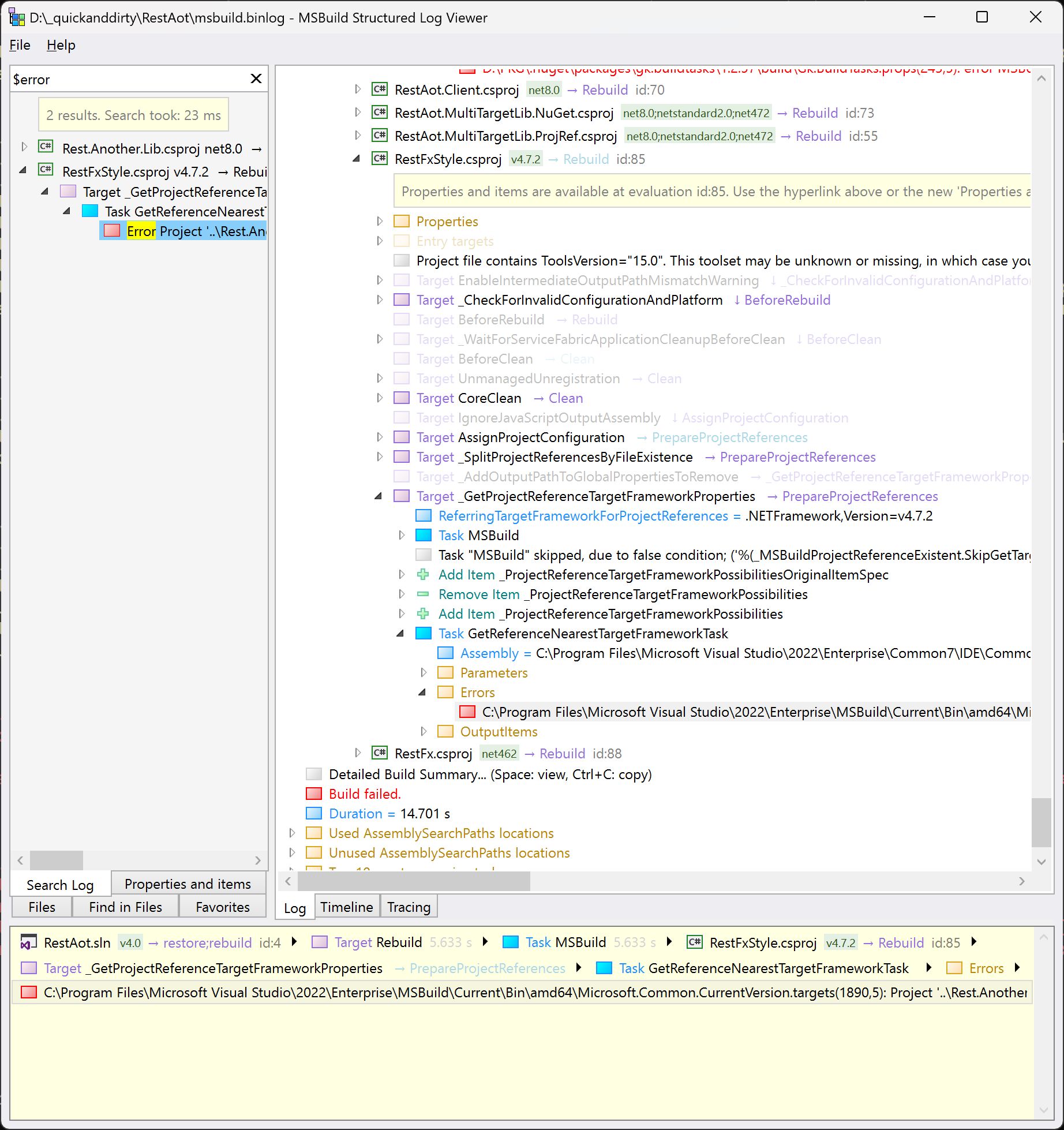
On the left side, you have a powerful full text search over the log. Search for projects, properties, targets, error codes, or whatever.
On the tree on the right side it will basically show each target the build executes (or skips), the values of the properties and you can even look inside the .targets files the build is composed of. Definitely cooler than sliced bread.
And worth a look how complex building even a fairly simple .NET .sln file can be.
Visual Studio
Visual Studio has two options to build a project or solution: as you will already know, you can open the solution in the Visual Studio IDE and build from the UI or using your favorite keyboard shortcut.
The second option is a command line only build (without opening the IDE) using devenv /build.
For both variants, basic options for build logging can be configured using the property pages for each project (these settings will end up in the project files). If that is not enough, it is usually straightforward to use a command line build (using either msbuild or dotnet build) to generate a binlog.
If the Visual Studio build does behave different from a command line build (which it may in some cases), there is a way to enable enhanced logging for it using environment variables:
SET MSBUILDDEBUGENGINE=1
SET MSBUILDDEBUGPATH=C:\MSBuildReproLogs
After setting these environment variables and opening a Visual Studio instance from this environment, the build will generate a lot of diagnostic information below %MSBUILDDEBUGPATH%. You will also find .binlog files there.
.sln/.slnf/.slnx solution files
.sln files are the old but still current text (non xml, non json) based solution files, which are hard to merge and maintain.
.slnf are solution filter files. If a .sln contains many projects and you want multiple filtered views with each containing a subset of the projects in the solution, you can create these .slnf files in json format either from Visual Studio (Solution Explorer, right-click for context menu, Save as Solution Filter) or by hand. They reference a .sln (or, a .slnx) and contain the projects.
.slnx is the new XML based .sln (replacement?) format. This is currently supported only in the preview versions of Visual Studio (17.12).
For command line builds: you can use msbuild and dotnet build to build .sln and .slnf (which reference a .sln). As of this writing, msbuild and dotnet build do not support building .slnx (or a .slnf which references a .slnx).
Generate an extended log file (binlog) to easily understand your .NET builds, debug problems and understand how the build works.